Getting started
Plinth is a desktop catalog for disk-scale 3D-print libraries: point it at the folders where your models already live and it gives you search, designer/release browsing, rendered previews, duplicate merging, space-saving packing, and a way to distribute releases and migrate your collection without losing curation. Your files stay where they are — Plinth indexes them, it doesn't move them (unless you ask it to).
1. Install
Grab the build for your OS from the releases page — see the installation guide for the unsigned-app warnings you'll click through on first run.
2. First launch: the render engine
Plinth renders model previews with Blender. On first launch it looks for an existing installation and offers to download its own private copy (~350 MB) if none is found or yours is older than the look is tuned for. You can skip this — everything except preview rendering works without Blender, and you can set it up later in Settings.
3. Point Plinth at your library
In Settings, add your library folder(s) as catalog folders. Multiple folders are supported, including network storage (NAS/SMB shares) — each folder is scanned and indexed separately.
Then run a scan. Plinth walks the folder, indexes every model file (STL/OBJ/3MF and slicer scenes), and derives designers, releases, groups, and poses from the folder structure and any metadata sidecars it finds. Rescanning is safe at any time: your edits (names, tags, pose assignments) are stored so they survive every rescan.
4. Browse and curate
The Catalog tab is home:
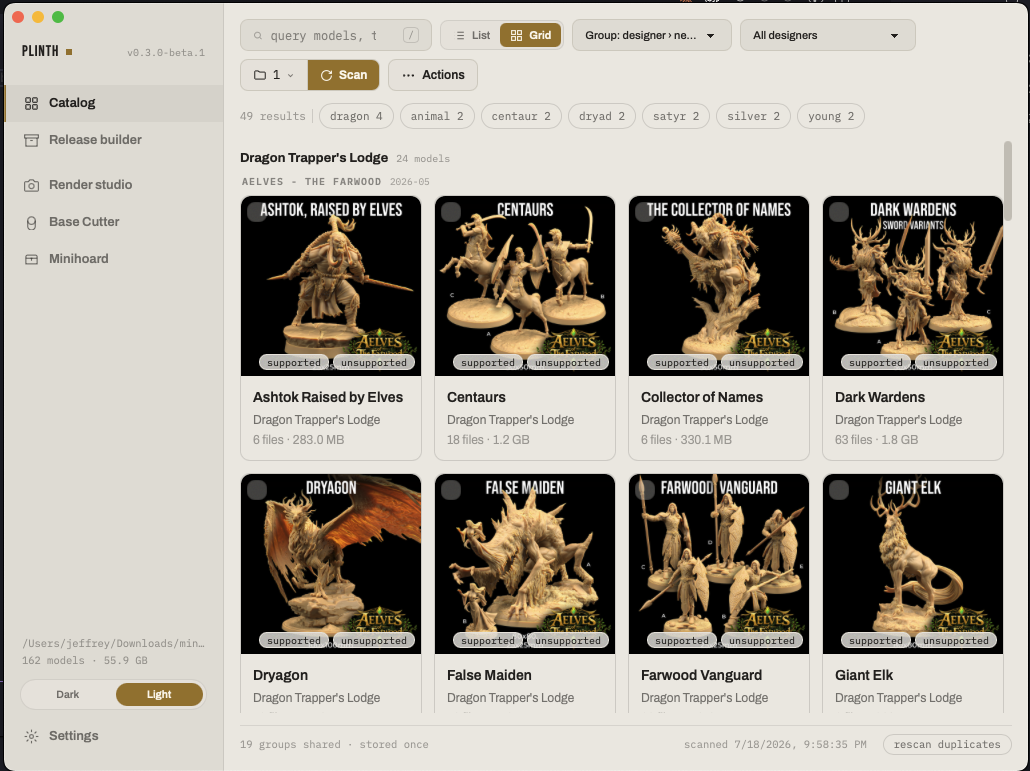
- Search and facets — filter by designer, search by name or tag.
- Groups and poses — variants of one model appear as one card with its members; open the drawer for files, metadata, tags, and a 3D preview.
- Print — the PRINT button opens a file picker (pre-sliced scenes pre-checked over raw geometry) and hands the ticked files to your slicer.
- Render previews — render one model from the drawer or batch-render everything that's missing a preview from the toolbar. Chosen orientations are remembered per model.
- Clean up — the catalog cleaner can restructure a messy folder tree into Plinth's canonical layout; every move is shown for review before anything is touched.
5. Reclaim disk space
Two independent tools, both safe by construction:
- Merge duplicates — a duplicate scan finds byte-identical files (one base repeated across five weapon variants…) and merges them with hardlinks where the volume supports it: stored once, still present in every variant, printing and browsing keep working.
- Pack models — models you rarely touch can be packed into a compressed archive in place ("📦 packed"). The catalog stays complete — packed models are still searchable, previewable, and printable (files are extracted just-in-time) — and unpacking restores the loose files exactly. Packed models can't be normalized, moved, or staged into a release until unpacked; the UI tells you when that's the reason something is disabled.
6. Import a release
Drag a release.3pk (with its sibling component archives next to it) onto the Plinth window, or double-click the file. You'll get an import dialog showing every component with its size — checksum-verified extraction, then the release appears in your catalog with all the creator's curation. Opening a newer version of a release you already imported offers only what changed. Details in Distributing & moving your library.